Google’s Stitch Update: “Vibe Design” and the Shrinking Distance Between Ideas and Tools

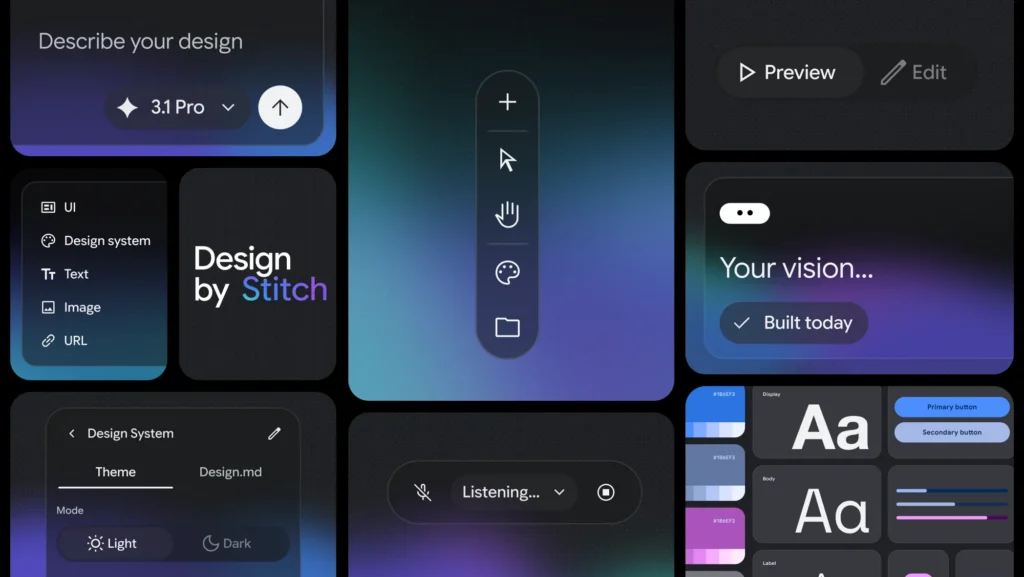
A preview of the updated Stitch AI-design tool from Google

Google recently announced a major update to its experimental design tool, Stitch. If you haven’t heard of it before, Stitch is an AI-powered interface design tool—but this update signals something bigger than just new features.

Google is now describing Stitch as an “AI-native software design canvas”—a space where users can move from an idea to a high-fidelity interface using natural language, images, or even voice.

That shift in language matters.

What’s Actually New in This Update?

Stitch isn’t new, but this version pushes it in a different direction. A few highlights stand out.

First, Stitch is no longer framed as a traditional design tool. Instead of starting with wireframes or components, users are encouraged to begin with intent—what they want to build, how it should feel, and what it should accomplish. In practice, that means you can describe a goal and generate a working interface almost immediately.

Second, Google introduces the idea of “vibe design.” While the phrasing might feel a little buzzword-heavy, the concept is straightforward. Rather than trying to get a design right on the first attempt, users can explore multiple directions quickly and refine toward a stronger result.

Third, the updated Stitch includes a design agent that works alongside the user. This agent can reason across the entire project, suggest changes, and help explore different directions simultaneously. It shifts the process from step-by-step construction to something closer to collaboration.

Another notable addition is the introduction of DESIGN.md, an agent-friendly markdown file that captures design rules and structure. This makes it easier to move designs into other tools or continue development with AI systems without starting over.

Finally, Stitch now supports instant prototyping of user flows. Instead of static screens, users can connect interfaces and immediately experience how someone would move through the app. That ability to test ideas quickly changes the pace of iteration.

Why This Matters for Educators

At first glance, this might seem like a tool built for designers or developers. But the implications for classrooms are more immediate than they appear.

For years, we’ve asked students to design solutions to problems—create a product, propose an innovation, build something meaningful—but those ideas often remain abstract. They exist in slides, posters, or written descriptions.

Tools like Stitch begin to close that gap.

Students can take an idea—such as a tool to help track progress in Algebra 1—and generate a working interface in minutes. From there, they can evaluate it, revise it, and improve it. The work becomes more tangible, and the feedback loop becomes faster.

That shift from describing an idea to interacting with it has real potential to deepen thinking.

The Bigger Shift Underneath

What Stitch represents is part of a broader change in how creation works.

The more technical aspects of building—layout, structure, and basic interaction design—are increasingly handled by AI. That doesn’t eliminate the need for skill, but it does change where the most important thinking happens.

Instead of focusing primarily on execution, the emphasis shifts toward clearly defining problems, making intentional design decisions, and evaluating whether something is actually useful.

Those are the kinds of capacities we want students to develop, but they’re often overshadowed by the mechanics of building something from scratch.

A Quick Reality Check

This doesn’t automatically lead to better learning.

If we simply replace “make a slideshow” with “generate an app,” we haven’t meaningfully changed the task. The tool itself isn’t the innovation. The thinking behind how it’s used is what matters.

Used thoughtfully, however, tools like Stitch can support faster iteration, more visible thinking, and more authentic design work.

Try This in Your Classroom

If you’re curious about what this might look like in practice, you don’t need a full unit redesign to get started. A simple activity can open the door.

Start with a question tied to your content:

  • “What would a tool that helps students master this unit actually look like?”
  • “How could we design something that makes feedback more useful?”
  • “What would help someone learn this concept more effectively?”

Have students work individually or in small groups to:

  1. Define the purpose of their tool
  2. Describe the user (another student, themselves, a teacher)
  3. Generate a design using Stitch or another AI interface tool
  4. Review the result and critique it

Then push their thinking:

  • What works about this design?
  • What doesn’t?
  • What would you change to make it more useful?
  • How does it connect to what we know about learning?

The goal isn’t to build a perfect product. It’s to move students into a cycle of idea → prototype → critique → revision, which is where deeper learning tends to happen.

Final Thought

Google describes this update as helping users “close the gap from idea to reality in minutes rather than days.”

That may sound ambitious, but it reflects a real trend.

As that gap continues to shrink, the question for educators isn’t whether students can build things. It’s what we ask them to build—and whether those tasks are worthy of the tools now available to them.


The Eclectic Educator is a free resource for everyone passionate about education and creativity. If you enjoy the content and want to support the newsletter, consider becoming a paid subscriber. Your support helps keep the insights and inspiration coming!

What Happens if Google Loses Chrome?

You may not know it, but Google has been part of an ongoing DOJ antitrust case.

According to the most recent filings, Google may be forced to fully divest itself of the Chrome web browser.

Imagine waking up to a web without Chrome. With Google potentially losing control of the world’s most popular browser—used daily by 3.4 billion people—the ripple effects could be profound, especially in education.

Schools relying heavily on Chromebooks could face immediate disruption.

This shift could usher in a new era of innovation. Education-focused browsers or open-source platforms might emerge, enhancing student privacy, accessibility, and user experience. Educators could rethink their technology strategies, potentially adopting more flexible and privacy-centric tools like Mozilla Firefox or exploring open platforms like Brave.

Change at this scale is rarely comfortable, but it often accelerates growth. The key question isn’t whether schools can handle the disruption—it’s how creatively and effectively they adapt.

Microsoft’s AI Push Imperils Climate Goal as Carbon Emissions Jump 30%

ai power usage

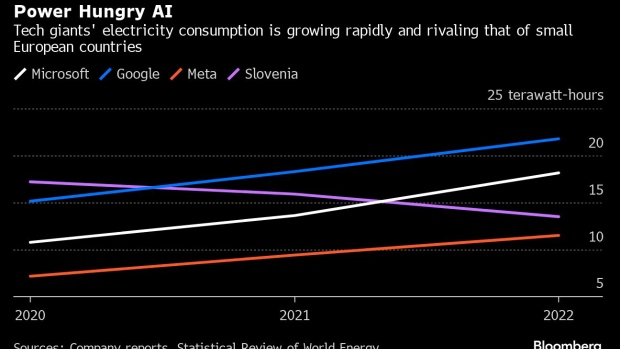
Microsoft’s ambitious climate goal is at risk due to its focus on artificial intelligence. The company’s carbon emissions have increased by 30%, making it harder to reach its carbon-negative target by 2030. Microsoft plans to invest in green technologies to balance the environmental impact of its AI expansion.

Read more from Bloomberg News

Google unveils Veo, a high-definition AI video generator that may rival Sora

Google Veo generated images

Google introduced Veo, an AI video generator, at Google I/O 2024, capable of creating HD videos from text prompts like OpenAI’s Sora. Veo can edit videos from written instructions and generate cinematic effects, but it’s not widely available yet. Google plans to integrate Veo’s features into YouTube Shorts and other products, emphasizing responsible content creation with watermarking and safety filters.

Google says that Veo builds upon the company’s previous video-generation models, including Generative Query Network (GQN), DVD-GAN, Imagen-VideoPhenaki, WALT, VideoPoet, and Lumiere. To enhance quality and efficiency, Veo’s training data includes more detailed video captions, and it utilizes compressed “latent” video representations. To improve Veo’s video-generation quality, Google included more detailed captions for the videos used to train Veo, allowing the AI to interpret prompts more accurately.

Veo also seems notable in that it supports filmmaking commands: “When given both an input video and editing command, like adding kayaks to an aerial shot of a coastline, Veo can apply this command to the initial video and create a new, edited video,” the company says.


The Eclectic Educator is a free resource for everyone passionate about education and creativity. If you enjoy the content and want to support the newsletter, consider becoming a paid subscriber. Your support helps keep the insights and inspiration coming!

Flying the Kite High Against Digital Colonialism: FOSS in the Era of EdTech

internet technology computer display
Photo by Markus Spiske on Pexels.com

In 2001, the Kerala government launched an EdTech project, IT@School, that was successfully pressured to resist digital colonialism. Recognizing how Microsoft, the tech super-giant of the day, threatened to undermine digital self-determination, activists and teacher’s unions pushed the Kerala government to make Free and Open Source Software (FOSS) mandatory in public schools. While IT@School and its successor, KITE, are scarcely known outside of India, their success over the past two decades presents an important model for resistance to Big Tech.

Michael Kwet

In this thought-provoking article by Michael Kwet, the author highlights the importance of avoiding digital colonialism and emphasizes the role of free and open-source software (FOSS) in promoting global digital justice. The article specifically focuses on the context of educational technology (EdTech) and its potential implications for marginalized communities.

Kwet defines “digital colonialism” as a phenomenon where powerful technology companies from developed countries dominate and control the digital infrastructure and services of less-developed nations. This leads to a dependence on foreign corporations, resulting in a loss of control over data, infrastructure, and decision-making processes. Kwet argues that this creates a new form of colonization where power and influence are exerted through digital means.

One solution proposed by Kwet is the promotion and adoption of free and open-source software (FOSS). FOSS refers to software that is freely available for anyone to use, modify, and distribute. It operates under a transparent and collaborative model, allowing communities to take ownership and control over their digital tools. Kwet believes that by embracing FOSS, countries can regain autonomy over their technological systems, reducing their reliance on foreign entities and fostering local innovation.

The article also highlights the global digital justice movement, which seeks to address the power imbalances and inequalities created by digital colonialism. This movement advocates for the rights of marginalized communities to access and control their own digital infrastructure, ensuring that technology is used to empower rather than exploit. The global digital justice movement emphasizes the need for fair and inclusive digital policies that prioritize the interests and well-being of all individuals, particularly those who have historically been marginalized or excluded.

Kwet warns against the pitfalls of relying solely on proprietary software and foreign corporations for EdTech solutions. He argues that this approach perpetuates the dominance of global technology giants, perpetuating digital colonialism and hindering local development. Instead, he encourages governments, educators, and technologists to explore and implement FOSS alternatives that empower communities, promote knowledge-sharing, and foster digital sovereignty.

In conclusion, the article emphasizes the importance of avoiding digital colonialism in the realm of EdTech. It encourages the adoption of FOSS as a means to promote global digital justice, empower marginalized communities, and regain control over digital infrastructure. By embracing these principles, societies can strive toward a more equitable and inclusive digital future.


The Eclectic Educator is a free resource for everyone passionate about education and creativity. If you enjoy the content and want to support the newsletter, consider becoming a paid subscriber. Your support helps keep the insights and inspiration coming!

Essential Chromebook Tips and Tricks: A Comprehensive Guide

acer chromebook on the white desk
Photo by Kaboompics .com on Pexels.com

Chromebooks have taken the market by storm with their simplicity and affordability. Not only that, their integration with Google services and other apps, as well as their high customization potential, make them ideal devices for users of all experience levels. In this guide, we’ll explore a variety of key Chromebook tips and tricks aimed at helping you optimize your use and increase your productivity.

Accessing Microsoft Office on Chromebook

A common question among new Chromebook users, particularly those switching from Windows, revolves around accessing Microsoft Office on their Chromebook. While Chromebooks, designed by Google, don’t natively support Microsoft Office due to the competition with Google’s own suite (Google Docs, Sheets, and Slides), users can still access Microsoft 365 online. This solution offers the familiarity of Microsoft Suite via the web browser on your Chromebook.

Customizing Your Chromebook

One of Chromebook’s key advantages is its high customizability. You can personalize your wallpaper with pre-built options or images downloaded from the internet. Screen savers and various other aspects of the Chromebook interface can also be modified to your liking.

Connecting Your Android Phone to Your Chromebook

Thanks to Google’s tight integration between Android and Chrome, you can effortlessly connect your Android phone to your Chromebook. This connection allows you to view recent photos, browser tabs, and app notifications on your Chromebook. It also enables features like locating your phone, turning on your mobile hotspot, and sharing your phone’s internet with your Chromebook.

Accessing Linux on Your Chromebook

Chromebooks have supported Linux since 2017, meaning you can bring full desktop applications based on Linux to your Chromebook. This includes applications like Visual Studio, VLC, Libre Office, and Firefox, among others. To enable Linux, navigate to Settings, then to Advanced, and finally to Developers.

Running Android Apps on Your Chromebook

Accessing over a million Android apps from the Google Play Store on your Chromebook offers a wealth of possibilities. While not all apps scale perfectly to the larger Chromebook screen, having the option to use your favorite Android apps like WhatsApp, Spotify, and Twitter can greatly enhance your productivity and entertainment.

Utilizing Google Assistant on Your Chromebook

The Google Assistant, an AI-driven smart assistant by Google, is also integrated into Chromebooks. By clicking on the launcher icon or the search button on your keyboard, you can send emails, open files, control your smart home, and much more.

Exploring Dark Mode on Chromebook

Just like smartphones and PCs, Chromebooks also support dark mode. This mode is particularly useful at nighttime as it’s easier on the eyes. To enable it, right-click on your desktop, go to ‘Set wallpaper and style’, and select ‘Dark’ or ‘Auto’ under themes.

Using VPN on Chromebook

While Chromebooks do offer built-in VPN support, users often find it easier to download Android app versions of their preferred VPN providers from the Google Play Store, such as ExpressVPN or Surfshark.

Maximizing Productivity with Split Screen and Virtual Desks

Chromebook supports split screen functionality, perfect for multitasking with two applications side by side. For a more organized workspace, consider using virtual desks to segment your tasks, such as work or entertainment.

Casting Your Chromebook Screen to Your TV

Want to watch a movie on a bigger screen or share a presentation with others? You can cast your Chromebook screen to your smart TV with ease.

No products found.

Using Your Chromebook Offline

Although Chromebooks are designed as cloud-centric devices, they still offer offline support for certain applications, primarily Google’s productivity tools such as Docs, Slides, and Sheets.

Restarting Your Chromebook

Unlike traditional laptops, Chromebooks require less frequent reboots. They operate with a lightweight operating system and therefore consume fewer system resources. However, if you need to refresh your device, the power button or the “Ctrl + Shift + Q (twice)” keyboard shortcut will allow you to restart or log out, respectively.

Backup and Sync

To safeguard your data, Google Drive is integrated directly into the Files app on your Chromebook. This feature allows automatic synchronization of your data, meaning you can access your documents, photos, and other files across devices. If you ever need to factory reset your Chromebook or switch to a new device, your data remains safely stored in Google Drive.

Guest Browsing

If you’re sharing your Chromebook with someone or need to use a public device, the guest browsing mode allows you to use the Chromebook without leaving any personal data behind. Once you sign out of the guest account, all your browsing history, files, and other data are completely removed from the device.

Keyboard Shortcuts

Chromebook features a host of unique keyboard shortcuts that can boost your productivity significantly. By pressing “Ctrl + Alt + /”, a keyboard overlay will pop up, showing you all the shortcuts available. These can help you navigate your Chromebook more efficiently, allowing for tasks such as opening a new tab, switching between windows, taking screenshots, and more.

Screen Magnifier and High Contrast Mode

For visually impaired users, Chromebook offers a screen magnifier and high contrast mode. You can enable these in the Accessibility section of the settings. These features allow users to more comfortably navigate their device and reduce eye strain.

These are just some of the many tips and tricks that can help you get the most out of your Chromebook. By familiarizing yourself with these features and functionalities, you can truly optimize your Chromebook experience, whether for work, study, or entertainment.


The Eclectic Educator is a free resource for everyone passionate about education and creativity. If you enjoy the content and want to support the newsletter, consider becoming a paid subscriber. Your support helps keep the insights and inspiration coming!

Pike Mall Tech: 10 May 2022

Photo by Ryland Dean on Unsplash

Today’s Links

How I would learn to code (if I could start over)

I was a computer science major back in the early part of this new millennia in another life. Somehow, I managed to leverage that into getting a job writing computer science standards for the state of Kentucky.

I still don’t know how that happened. Weird.

Anyway, the first coding language I learned was Java. It’s a beast with a very steep learning curve that intimidates most people. And it’s a horrible language to tackle when you’re first starting out.

If I had it to do all over again, I might go this route.

Service-learning isn’t just for after school clubs

I love service projects organized by students. Clothing drives, food drives, clean-up days, and many others are great ways to engage students in their communities.

But we shouldn’t just leave service projects to after-school clubs.

What if we made them part of the learning process in core content classes?

Tom Holman, board chair of the Search Institute, told me that their research shows one of the three most positive indicators (predictors) of future success among young people is their belief that “what they do makes a difference” (searchinstitute.org). He also recommends the Multiplying Good organization, which can be found at minnesota.multiplyinggood.org.

Producing More Successful Students Like Grant

Personalized certificates with The Google

It’s near the end of the school year for most places in the US and that often means certificates.

Whether you’re handing out certificates to students or teachers (hello PD), there are options for you if you’re using The Google.

How to Create and Send Personalized Certificates in Google Workspace

Linkus Randomus

Colophon

colophon example
Latine non loquor

Currently writing:

  • Volume 1: The Heretic Chronicles – a fantasy story about a girl, her sword, and extreme fundamentalist religion (WC: 15,457)
  • Untitled Sci-Fi novel – a group of students race across the stars, avoiding an evil empire (WC: 275)
  • Sci-fi short story – earth as a farm for aliens (WC: 492)

Currently reading:

Upcoming Events:


This work is licensed under a Creative Commons Attribution 4.0 license. That means you can use it any way you like, including commercially, provided that you attribute it to me, Mike Paul, and include a link to pikemall.tech.

https://creativecommons.org/licenses/by/4.0/

Quotations and images are not included in this license; they are included either under a limitation or exception to copyright or on the basis of a separate license. Please exercise caution.

Cory Doctorow’s work at Pluralistic inspired the layout, focus, and work displayed here. Hat tip to Cory for all his fine work.


How to get Pike Mall Tech:

Blog (no tracking, or data collection):

PikeMall.tech

Newsletter:

https://mikepaul.substack.com/

Medium (no ads, paywalled):

https://mikepaul.medium.com/

Twitter (mass-scale, unrestricted, third-party surveillance and advertising):

https://twitter.com/mikepaul

Tumblr (mass-scale, unrestricted, third-party surveillance and advertising):

https://pikemalltech.tumblr.com/tagged/pikemalltech